_edited.png)

Understanding USB Connections (Without Losing Your Mind)

By CyberScape Insights
If you’ve ever stared at a drawer full of cables and thought, “Why are there 47 different USB plugs?” — you’re not alone.
USB (Universal Serial Bus) was created to make connections simple. Ironically… it now comes in several shapes and speeds. The good news? Once you understand the basics, it all makes sense.
Let’s break it down clearly — with simple language, real-world examples, and just a little mild humor.
USB Type-A (The Classic Rectangle)


What It Looks Like
Flat, rectangular, and slightly stubborn.
Where You See It
Laptops
Desktop computers
Game consoles
Wall chargers
Flash drives
What It’s Used For
Keyboards
Mice
Printers
USB drives
Charging phones (older cables)
Important Detail
Type-A is usually the host port — meaning it’s the side that provides power and controls the connection.
Fun Fact
USB Type-A has a 50% chance of being upside down. Then somehow still wrong the second time. Physics has not yet explained this phenomenon.
USB Type-B (The Printer Plug)


What It Looks Like
Almost square with two slightly angled top corners.
Where You See It
Printers
Scanners
Some audio interfaces
Older external hard drives
What It’s Used For
Connecting larger devices to a computer.
Why It Exists
It was designed to prevent you from plugging two computers directly into each other (which could cause electrical damage).
Not glamorous. Very practical.
Mini USB (The “Early 2000s” Connector)


What It Looks Like
Small and slightly trapezoid-shaped.
Where You Saw It
Older digital cameras
Early MP3 players
GPS units
Status
Mostly retired. Still shows up in older tech hiding in closets.
Micro USB (The Skinny One)

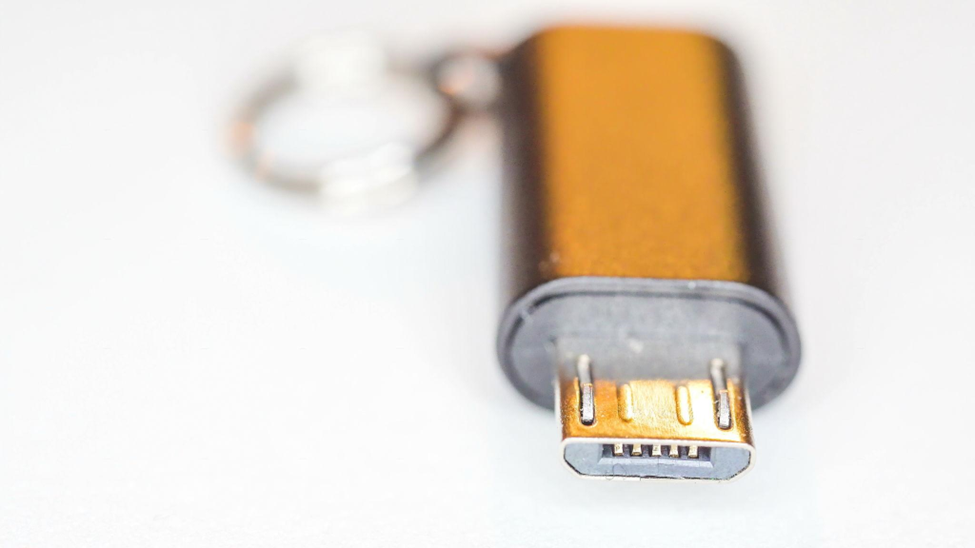
What It Looks Like
Very thin and flat with slightly slanted edges.
Where You See It
Older Android phones
Bluetooth speakers
Power banks
E-readers
What It’s Used For
Charging and data transfer.
Important Detail
Micro USB can only plug in one way — and it often feels fragile if forced.
If it doesn’t fit easily… don’t push it.
USB Type-C (The Modern Hero)


What It Looks Like
Small, oval-shaped, symmetrical.
Why Everyone Loves It
Plugs in either direction (finally!)
Faster data speeds
Can carry video (for monitors)
Can charge laptops
Can power devices
Where You See It
Modern smartphones
New laptops
Tablets
Gaming devices
Docking stations
Important Detail
USB-C is the shape, not the speed.
Some USB-C cables:
Charge only
Transfer data slowly
Transfer data very fast
Support 4K video
Charge full laptops
Same shape. Different capabilities. Yes, it’s slightly confusing.
USB Speed Versions (Simple Explanation)
USB also has generations.
You might see labels like:
USB 2.0
USB 3.0
USB 3.1
USB 3.2
USB4
Think of these as how fast the highway is, not the shape of the road.
Easy Rule of Thumb
USB 2.0 → basic speed (older)
USB 3.x → much faster
USB 4 → extremely fast and powerful
Often, USB 3 ports are colored blue inside — but not always.
Charging vs Data (Not All Cables Are Equal)
Two cables can look identical.
One may:
Charge slowly
Transfer files slowly
Another may:
Charge a laptop
Transfer large video files quickly
Price usually reflects capability. A $3 cable and a $25 cable are not built the same.
Common Everyday Scenarios
“Why won’t my laptop charge through this USB-C cable?”
Because not all USB-C cables support high-wattage power delivery.
“Why is my file transfer slow?”
You might be using a USB 2.0 cable in a USB 3 port.
“Can I use this phone charger for my laptop?”
Only if the charger and cable support enough power (wattage).
Quick Summary Chart
Type | Shape | Common Use | Still Relevant? |
Type-A | Rectangle | Computers, flash drives | Yes |
Type-B | Square-ish | Printers | Yes (limited) |
Mini USB | Small trapezoid | Old cameras | Rare |
Micro USB | Thin flat | Older phones | Fading |
Type-C | Oval, reversible | Modern devices | Yes (future standard) |
Final Thoughts
USB was designed to simplify life.
It mostly succeeded… eventually.
If you remember just three things:
Type-C is the modern standard.
Shape does not equal speed.
If it doesn’t fit easily, don’t force it.
Your devices — and your sanity — will thank you.


Comments